How to use FRIDAY!
FRIDAY Canvas — Complete Help Guide
Getting Started
What is FRIDAY Canvas? FRIDAY Canvas is a personal productivity workspace with a built-in AI assistant called FRIDAY. It combines session-based note-taking, project management, calendar integration, and an AI that watches your entire workspace — not just one tab — so it can connect the dots across everything you’re working on.
How do I create an account? Go to fridaycanvas.com and click Sign Up. Once you’re in, your account works across every device — phone, tablet, and desktop — just sign in from any browser.
Do I need to install anything? No. FRIDAY Canvas runs entirely in your browser. However, two optional add-ons unlock more capability:
- Home screen install (PWA) — adds FRIDAY to your phone or computer like a native app, enables push notifications, and works offline
- Chrome Extension — lets FRIDAY read your open browser tabs so it can give smarter, context-aware responses on desktop
The Dashboard
What is the Dashboard? The Dashboard is your home base. It shows all your projects, your session history (the Corporate Canvas), your calendar, and the “FRIDAY says…” notification strip at the top. Everything in FRIDAY Canvas flows through here.
What is the “FRIDAY says…” strip? The dark blue strip at the top of your dashboard is where FRIDAY posts his own notes, reminders, and observations — things he noticed while watching your workspace in the background. It only appears when there’s something worth saying. Each item has a priority level (High / Medium / Low) and a checkbox. Tick the checkbox to mark it done and clear it from the strip.
What is the Canvas/Dashboard? The Dashboard is a visual timeline of all your work sessions across all projects. Each column represents a project; the height of each bar represents how much time you spent in a session. It’s your work diary — scroll back to see exactly when decisions were made. Too many projects, organize into one Themed column.
What are the tabs at the top of the Dashboard?
- Canvas — your project dashboard/timeline and session history
- Calendar — your connected personal calendar
- There may be additional tabs depending on your plan
Projects
How do I create a project? Click the + button on the dashboard. Give your project a name. Projects are the top-level containers for all your work — sessions, saved items, notes, and ping rules all live inside a project.
Can I create sub-projects? Yes. When creating a project, you can nest it under an existing parent project. You can also ask FRIDAY directly: “Create a sub-project called [name] under [parent project]” and he’ll do it.
How do I switch between projects? Tap any project name on the Canvas to open its WorkZone.
WorkZone
What is the WorkZone? The WorkZone is your focused work area. When you open a project, the WorkZone slides in. It has:
- A main notes area for free-form writing and dictation
- A right-side panel with saved items (Plans, Ideas, To Do, Notes)
- The FRIDAY chat panel
- A ping rule block for phone notifications
How do I start a session? Open any project — a session starts automatically. Give it a title that describes what you’re working on: “Client call prep”, “Budget review”, “Research sprint”. The title becomes your session log entry.
How do I save something from my notes to my project? Highlight any text in the notes area and use the category buttons (Plans, Ideas, To Do, Notes) to save it to the right panel. (Or create your own saved categories) Saved items persist across sessions — they’re your project’s running summary.
What are the categories in the right panel?
- Plans — strategic decisions, next steps, roadmap items
- Ideas — brainstorms, possibilities, things to explore
- To Do — action items with a clear next action
- Notes — reference material, quotes, links, context
Can FRIDAY write directly into my WorkZone? Yes, if write access is enabled. Tell FRIDAY “Add this to my to-do list” or click the small insert arrow, or “Save that idea to Project X” and he’ll insert it. He can write to the active project or any other project by name.
FRIDAY AI Assistant
What can I ask FRIDAY? Almost anything work-related:
- Summarize your session notes
- Suggest next steps for a project
- Draft emails, proposals, or content
- Connect information across your open tabs
- Look up information on the web
- Add or update calendar events
- Set phone ping rules for a project
- Create or rename projects and sessions
How do I open FRIDAY? In the WorkZone, tap the FRIDAY button in the top-right corner. A chat panel slides open alongside your notes — you keep your work visible while you talk.
What context does FRIDAY have? FRIDAY always sees:
- Your current session notes
- All saved items across all your projects
- Your session history across every project (not just the active one)
- Your calendar events for the next 7 days
- Your open browser tabs (when the Chrome Extension is installed)
- Your past conversations with FRIDAY
Does FRIDAY see all my projects or just the one I’m in? All of them. FRIDAY has a full view of your entire workspace — every project, every session, every saved item. If something on one of your tabs connects to a different project, he’ll tell you.
What is the background ON/OFF toggle? Next to the FRIDAY button in the WorkZone header is a small toggle switch. When it’s ON, FRIDAY runs silent background sweeps every 30 minutes while a WorkZone is active — checking your tabs, calendar, and all projects for anything worth flagging. Results are posted to the “FRIDAY says…” strip. Turn it OFF for uninterrupted focus time. It costs credits only when he generates a response.
How many credits does FRIDAY use? Credits are only consumed when FRIDAY actively generates a reply — chat responses and background sweep briefs. Tab reads, calendar syncs, and ping rule checks use zero credits. Your remaining credit balance is shown in the header.
Can FRIDAY read my banking or financial sites? He can read the visible text on those pages, but he cannot log in, click, transfer money, or take any action on your behalf. He’s read-only everywhere — he can tell you what he sees but he cannot touch it.
Tab Awareness
What is tab awareness? Tab awareness lets FRIDAY read the content of your open browser tabs (titles, headings, visible text) so he can answer questions with real context from what you’re actually looking at. He reads silently — he won’t narrate your tabs unless you ask.
How do I enable tab awareness?
- Install the FRIDAY Canvas Chrome Extension (desktop only)
- In the extension settings, set Site access to “On all sites”
- In FRIDAY’s settings, enable the Tab awareness toggle
- Refresh the FRIDAY Canvas tab
Does tab awareness work on mobile? No. Chrome Extensions only run on desktop browsers (Windows, Mac, Linux, Chromebook). On mobile, FRIDAY works without tab awareness but still has full access to your notes, saved items, calendar, and project history.
FRIDAY says tab awareness is off even though it’s enabled — what do I do?
- Make sure the Chrome Extension is installed and enabled at chrome://extensions
- Set Site access to “On all sites” in the extension details
- Refresh the FRIDAY Canvas tab
- Check that the Tab awareness toggle is on in Settings
Chrome Extension
What does the Chrome Extension do? Two things:
- Tab awareness — lets FRIDAY read your open tabs for smarter, context-aware responses
- Background mic — keeps voice dictation active even when the FRIDAY Canvas tab isn’t in focus
Where do I install it? Search for “FRIDAY Canvas” in the Chrome Web Store, or go to Settings → Device Setup → Set up. Works on Chrome, Edge, and Chromebook browsers.
Does it work on iPhone or iPad? No. Chrome Extensions are not supported on iOS. The extension is for desktop and Chromebook only.
Is it safe? What can it read? The extension reads tab titles and visible page text — nothing else. It cannot read passwords, form fields, private browser tabs, or other browser profiles. It cannot click, type, or submit anything. Tab content is used in the moment and never stored or sent to anyone.
Calendar Integration
How do I connect my calendar? Go to the Calendar tab on the dashboard. Paste your ICS/iCalendar feed URL and tap Sync. Works with Google Calendar, Apple Calendar, Outlook, and any app that exports an ICS link.
Where do I find my Google Calendar ICS link?
- Open calendar.google.com on a computer
- Find your calendar in the left sidebar
- Click the ⋮ menu → Settings and sharing
- Scroll down to Integrate calendar
- Copy the Secret address in iCal format — that’s your URL
Does FRIDAY write to my calendar? Only if you ask him to. Say “Add a meeting with Sarah on Friday at 2pm” and he’ll create it. He will never add, edit, or delete events without your explicit instruction.
What about recurring events? FRIDAY fully expands recurring events into individual occurrences, so your weekly stand-ups, monthly reviews, and other repeating events all appear on their correct dates.
Phone Push Notifications (Pings)
How do I get push notifications from FRIDAY on my phone?
- Open any WorkZone project
- Open the sub-categories side panel
- Find the “FRIDAY can “Ping” you if…” block
- Toggle it on — the app will ask for notification permission and connect your phone automatically
What is a ping rule? A ping rule tells FRIDAY what to watch for in a specific project.
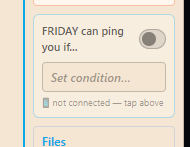
Examples:
- “The price on that eBay listing drops below $50”
- “My 3pm meeting is 30 minutes away”
- “I haven’t touched this project in 2 days”
When the condition is met, FRIDAY sends a push notification to your phone.
How do I set a ping rule? Tap the ??? button next to the condition input. This opens the FRIDAY chat panel pre-loaded with “Friday ping me if…” — describe your condition in plain English and FRIDAY writes the rule for you.
Can I set ping rules through chat? Yes. In any project’s FRIDAY panel, say “Ping me if [condition]” and FRIDAY will set the rule directly — no manual editing needed.
Does each project get its own ping rule? Yes. Every project has its own independent ping rule with its own on/off toggle and condition.
How do I connect my phone to receive pings? Open a WorkZone project → side panel → find the ping rule block → tap Connect phone. Allow notifications when your browser asks. Any device where you’ve opened FRIDAY Canvas can be registered, including multiple devices.
Home Screen Install (PWA)
What does installing FRIDAY on my home screen do?
- Opens FRIDAY instantly from your home screen like a native app
- Enables phone push notifications from FRIDAY
- Works offline for basic features
- Removes the browser address bar for a cleaner experience
How do I install on Android? When the “Add FRIDAY to your home screen” banner appears, tap Install now. If the banner isn’t showing: open Chrome → tap the three-dot menu → Add to Home screen.
How do I install on iPhone / iPad / iPod?
- Open FRIDAY Canvas in Safari (must be Safari — Chrome on iOS does not support this)
- Tap the Share button (the box with an arrow at the bottom of the screen)
- Scroll down and tap Add to Home Screen
- Tap Add
How do I install on a Chromebook or desktop? Look for the install icon in the address bar (a screen with a down arrow), or go to Settings → Device Setup → Install now. FRIDAY opens as its own window in your app launcher.
One account, every device You don’t install a separate app for each device. Just open fridaycanvas.com in any browser and log in. Your projects, sessions, and saved items are always in sync.
Voice Dictation
How do voice notes work? Tap the microphone icon in the WorkZone to start dictating. Your words are transcribed in real time and added to your session notes. Tap again to stop.
Can I use voice on my phone? Yes. Voice dictation works in mobile browsers. For the best experience, use Safari on iPhone/iPad or Chrome on Android.
What is background mic? With the Chrome Extension installed on desktop, the mic stays active even when you switch to another tab — so you can dictate notes without keeping the FRIDAY Canvas tab in focus.
What is the wake word? Say “Hey Friday” to start dictating hands-free when the WorkZone is open (Premium feature). Say “stop” or “done” to end dictation.
Settings
Where do I find Settings? Tap the gear icon on the left sidebar of the dashboard.
What can I change in Settings?
- Your display name and voice preference (male/female for FRIDAY’s responses)
- AI assistant on/off
- Tab awareness on/off
- Calendar domain allowlist (which calendar sources are trusted)
- File storage and imports
- Subscription and billing
What is Device Setup in Settings? A live status card that shows whether your Chrome Extension is connected and whether FRIDAY is installed as a home screen app — with one-tap action buttons to set up whichever is missing.
What is the calendar domain allowlist? A security feature that controls which calendar sources FRIDAY is allowed to fetch. Google Calendar, Outlook, Apple Calendar, and other major providers are pre-approved. If you use a company or private calendar, you can add its domain here.
Credits & Plans
What uses credits? Only active FRIDAY AI responses — chat replies and background sweep briefs. Everything else (tab reads, calendar syncs, session saves, ping rule checks) is free.
Where do I see my credit balance? In the FRIDAY Canvas header at the top of the screen.
What happens when I run out of credits? FRIDAY chat and background sweeps pause until your billing period resets or you upgrade your plan. Your notes, sessions, calendar, and saved items are unaffected.
What plans are available?
- Intro — 7-day trial, 25K credits
- Lite — 100K credits per billing period
- Busy — 300K credits per billing period
- Full — 1M credits per billing period
Troubleshooting
FRIDAY isn’t responding Check your credit balance in the header. If it’s zero, you’ve used your allocation for this period. If credits remain, check your internet connection.
My calendar shows no events after syncing Make sure you used the correct ICS URL (the “Secret address in iCal format” for Google, not the public URL). Try tapping “Sync now” again. Events are imported for 30 days back and 2 years forward.
The Chrome Extension says “Not detected” after installing Refresh the FRIDAY Canvas tab. Check that the extension is enabled at chrome://extensions. Make sure Site access is set to “On all sites” in the extension details page.
Push notifications aren’t arriving on my phone Make sure you tapped “Connect phone” in the WorkZone ping rule block and allowed notifications when prompted. Check that notifications are allowed for your browser in your phone’s system Settings → Notifications. Make sure FRIDAY Canvas is installed as a home screen app (PWA) — push notifications require the PWA install.
I dismissed the setup banner and can’t find it The banner returns automatically next time you log in. You can also find the same setup options any time in Settings → Device Setup or in the About / Setup Guide page.
Voice dictation stops when I switch tabs Install the Chrome Extension on desktop — it adds background mic support so dictation continues even when FRIDAY Canvas isn’t the active tab.